Disclosure: As a reader-supported blog, some of the links in our posts are affiliate links, and if you go through them to make a purchase we may earn a commission. This doesn’t cost you anything extra, but it does help us keep the site up and running with quality content. Thank you for your support!
Efficiently managing your schedule is crucial for productivity. By integrating Google Calendar with Notion, you can create a powerful system for organizing your events, automating repetitive tasks, and streamlining your work and personal life.
Table of Contents
Why Combine Google Calendar and Notion?
Integrating Google Calendar with Notion offers several advantages:
- Flexibility: Notion allows you to customize databases and templates to suit your specific scheduling needs.
- Collaboration: Notion’s collaborative features make it an excellent tool for team calendars and shared events.
Embedding a Static Google Calendar in Notion
Sometimes, you may prefer to have a static view of your Google Calendar directly within a Notion page for quick reference. While this won’t offer real-time updates, it can be a handy way to visualize your schedule. Here’s how to embed a static Google Calendar:
- Open Google Calendar:
- Go to your Google Calendar and ensure you’re logged into the Google account associated with your calendar.
- Select Calendar to Share:
- On the left-hand side, under “My calendars,” locate the calendar you want to embed.
- Access Calendar Settings:
- Click the three dots (More options) next to the calendar’s name and select “Settings and sharing.”
- Generate the Embed Code:
- Scroll down to the “Integrate calendar” section.
- In the “Embed code” section, you’ll find the calendar URL necessary for embedding the calendar.
- Make sure your calendar is set to be publicly accessible
- Copy the Embed URL:
- Copy the generated URL.
- Embed in Notion:
- Return to your Notion workspace and open the page where you want to embed the calendar.
- Paste the URL and the options menu should pop up. Select “Create embed”
- View the Embedded Calendar:
- Your Google Calendar should now be visible on your Notion page. You can resize the block to fit your layout.
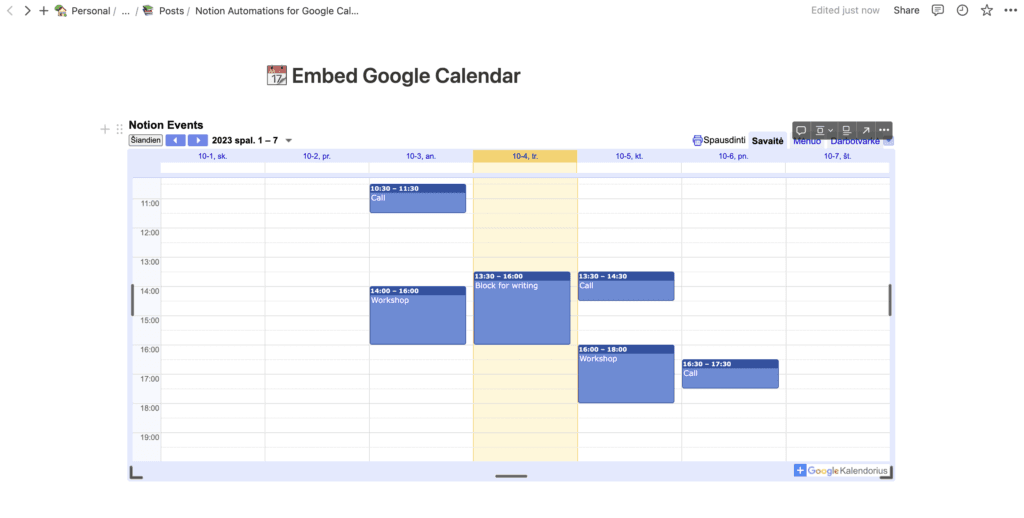
Remember that this is a static view of your Google Calendar, so it won’t update in real-time. However, it provides a visual reference to your schedule directly within your Notion workspace.
Setting Up Google Calendar Integration with Notion
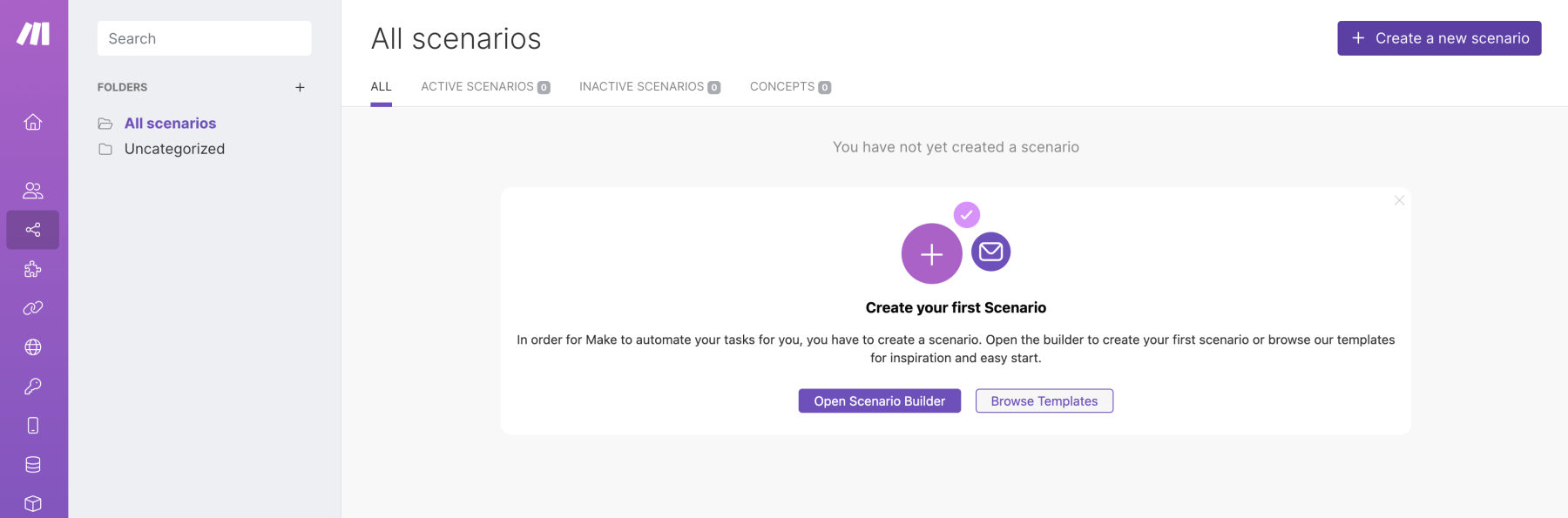
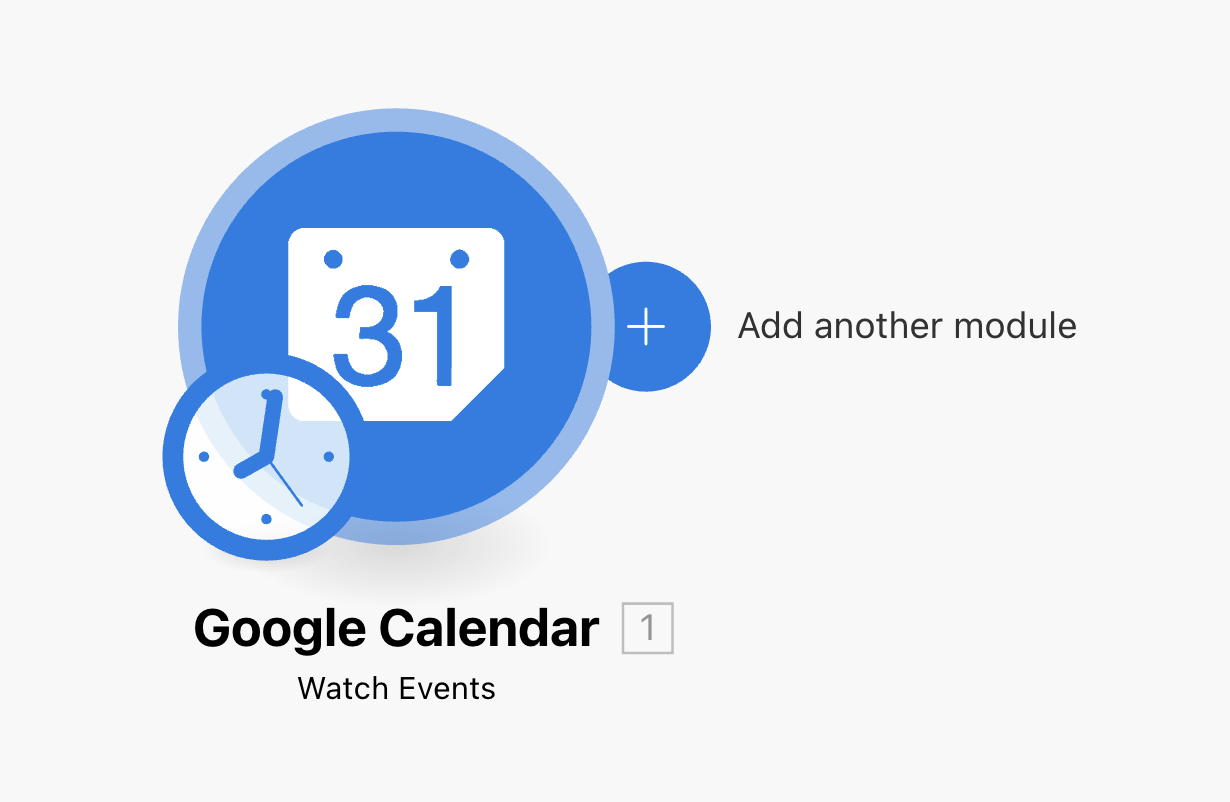
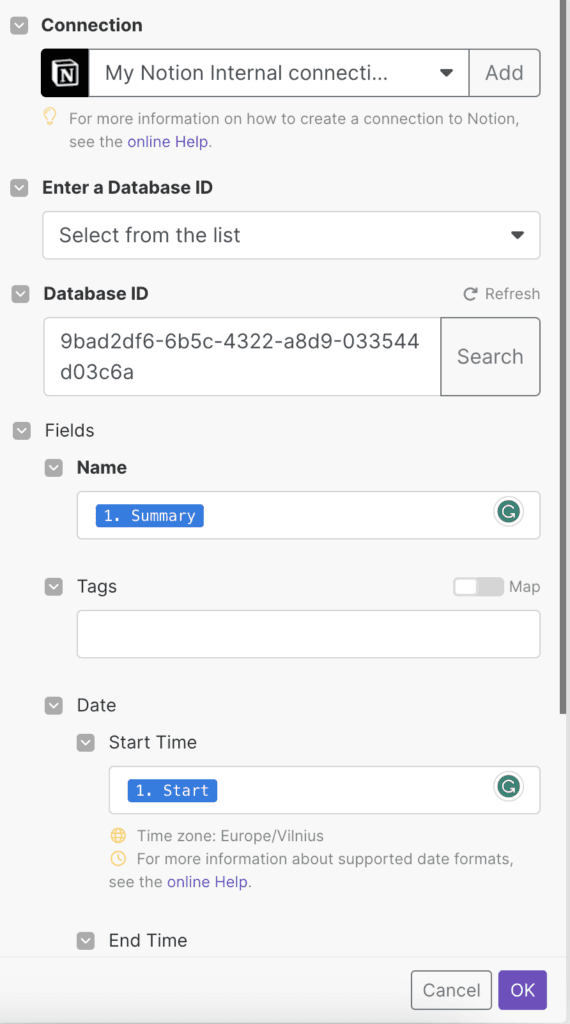
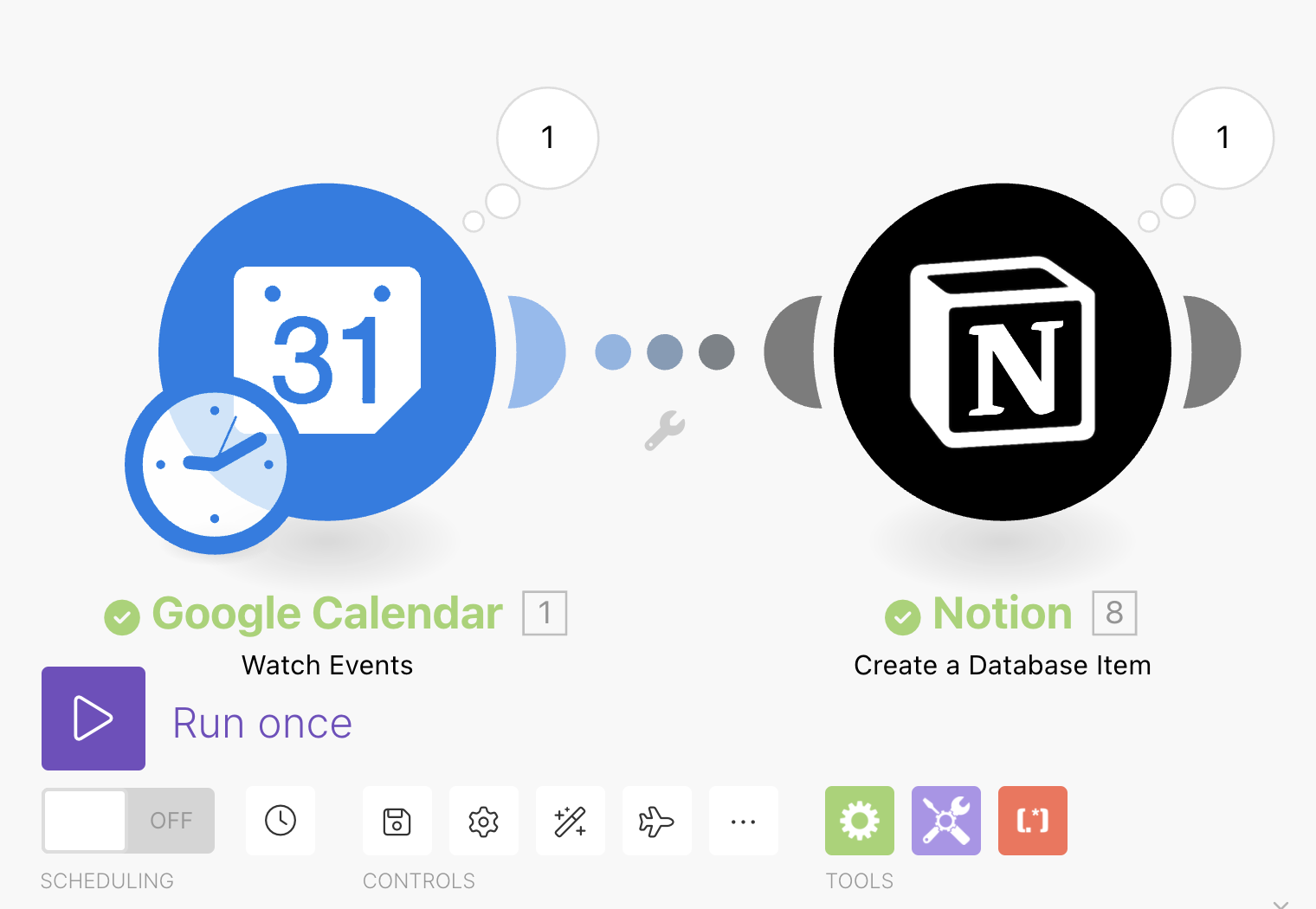
While Notion doesn’t have a direct integration with Google Calendar, a connection can be established using third-party services. In this tutorial, we’ll explore integration using the Make platform, but before we begin, some preparations in Notion are necessary. Alternatively, if you prefer not to use the Make platform or would like to avoid setting up things yourself, you can opt for a specialized service called 2sync. This service is designed specifically for seamless integration between Notion and Google Calendar, offering a convenient and user-friendly alternative.
- Create a Notion Calendar Database:
- Start by creating an empty page in Notion, wherever suits you best.
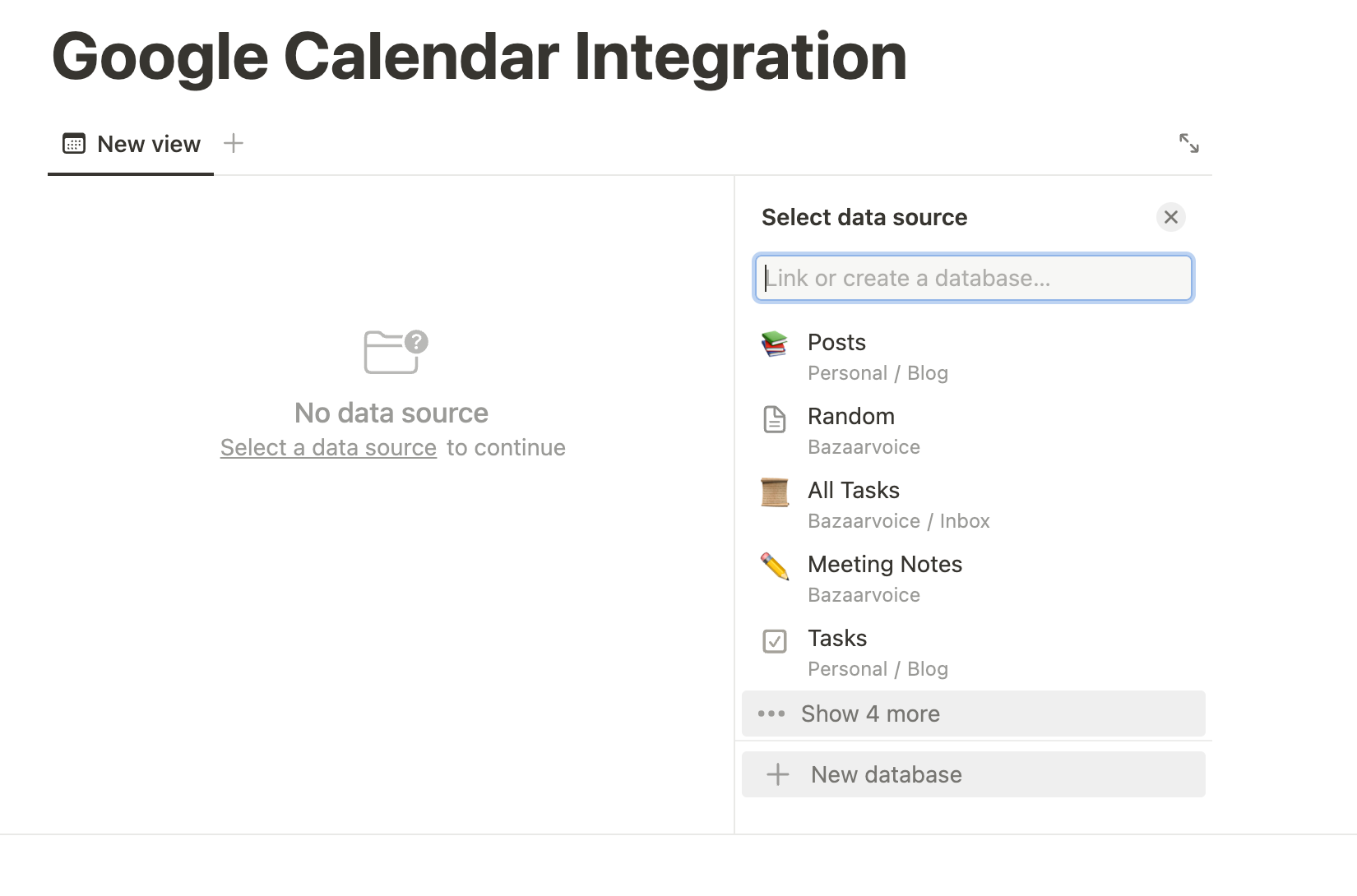
- Type “/” and search for “Calendar view.” Choose it.
- If you already have a data source, select it; otherwise, create a new database.
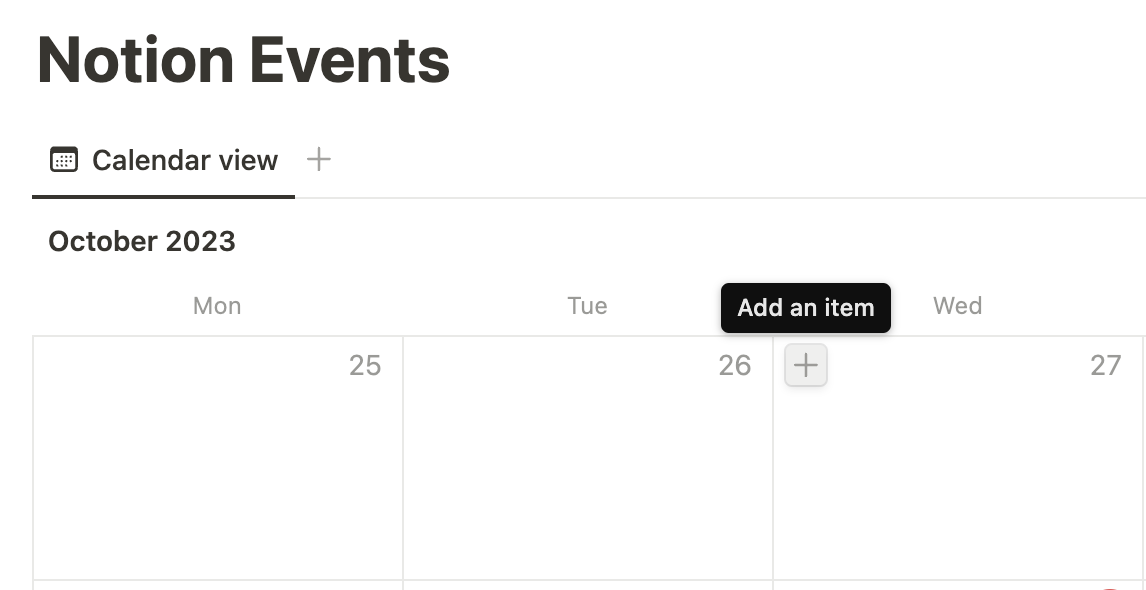
- Now, you’ll see an empty calendar view ready to be filled with events.